
Follow the steps below to void a scheduled bill:
1. Go to "Bills" from the side menu and click on the "Approved" tab.
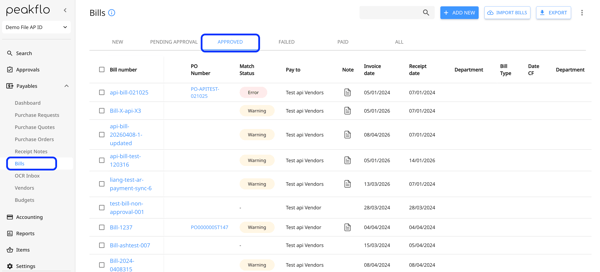
2. Click on the bill that you would like to void.
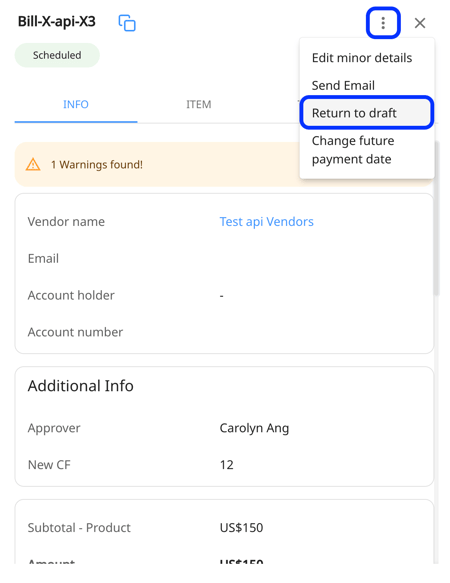
3. Next, a pop-up will appear. Click on the three-dot menu and select "Return to draft."
4. After the bill is in draft stage, you can click on the bill and delete it by selecting "Delete" from the three-dot menu in the pop-up.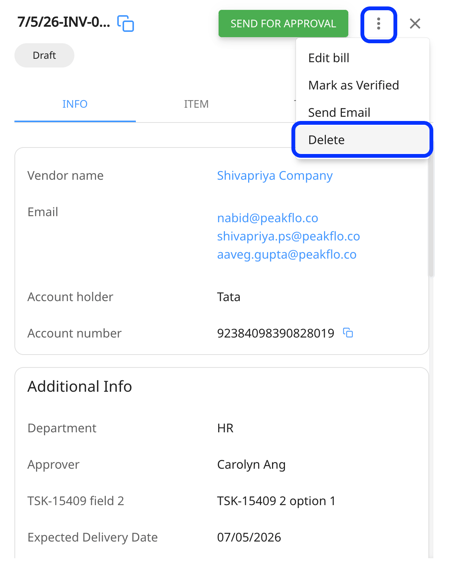
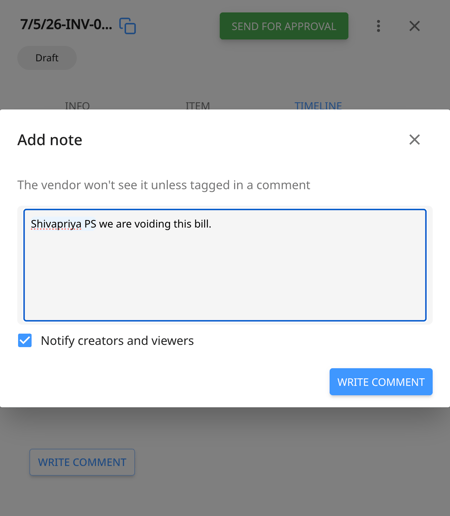
Next, an "Add note" dialogue box will appear. Here you can tag your vendor and leave a note.
5. Once the bill has been deleted in Peakflo, the system will automatically update the corresponding record in the vendor portal. The linked vendor invoice will be marked with the status “Void”.
When the invoice status is updated to Void:
-
The related CPO balance will be fully restored.
-
The billed status of the associated CRN will change back to "Not billed".
6. The vendor can then issue a new invoice against the same Not billed CPO/CRN, without creating any overbilling scenarios.