
Firstly, if your company does not have a Meta Business Manager, check out this link to see how you can set it up.
1. Verify your Meta Business Manager account
In case your Meta Business account is already verified, you can skip this step.
- Click this link to start the verification
- Go to your Meta Business Manager "Business Settings" and click on "Start Verification"
- It takes ~ 5-15 mins to complete verification and up to 7-14 business days for Meta to review
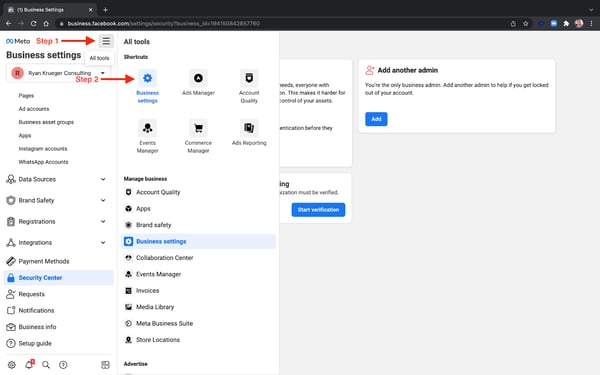
- Note: If you're unable to find your business on step 2 of Meta business verification, you may be asked to upload official documents to prove you have a registered business. Please view this link for more information.
- Disclaimer: Please note that all decisions related to business verification and display name approvals are solely controlled by Meta and we have limited visibility to their decisions. You may experience delays from Meta that can take up to 15-30 days. Twilio will work actively with Meta to resolve the delays on your behalf.
2. Grant access to the Peakflo team on Peakflo Workflo
If you do not yet have access to Peakflo Workflo, please contact support@peakflo.co so our team can complete this step for you.
If you already have access to Peakflo Workflo, please grant access to the Peakflo team. This access is necessary so that we can:
-
Complete the Twilio configuration
-
Set up WhatsApp Business (WAB) reminders
-
Diagnose and resolve any template or approval issues
To give access to the Peakflo team, please follow these steps:
-
Log in to Peakflo Workflo: https://app.peakflo.ai
-
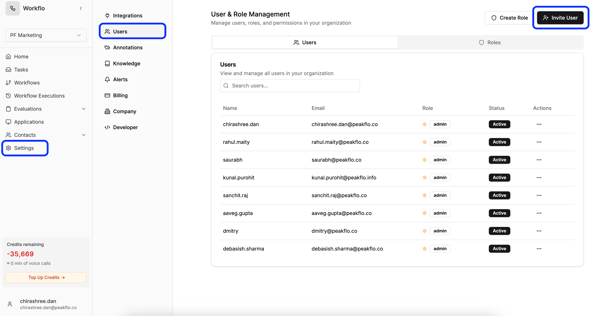
Navigate to "Settings", click on "Users", and click "Invite User."
-
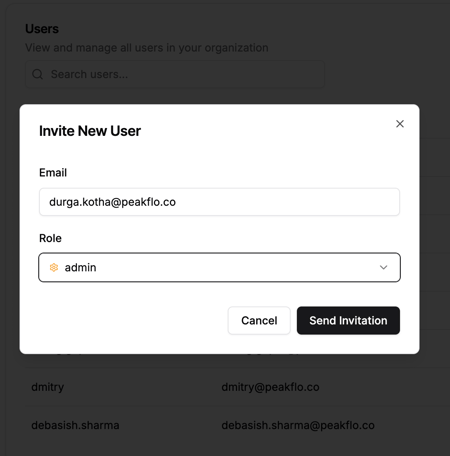
Add the following email address, and assign the "Admin" role: durga.kotha@peakflo.co
-
Click "Send Invite"
After access has been granted, please inform your designated Peakflo point of contact so we can proceed with the configuration.
3. Add WhatsApp Business Integration in Peakflo Workflo
-
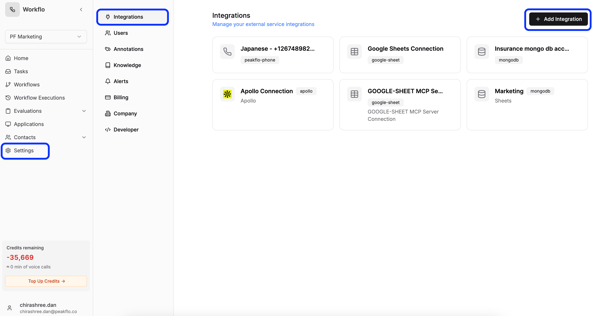
In Peakflo Workflo, navigate to "Integrations" and click "Add Integration."
-
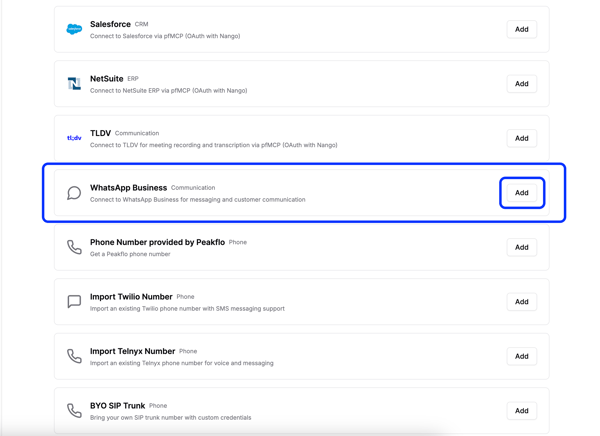
From the list of integrations, click on "Add" adjacent to WhatsApp Business.
-
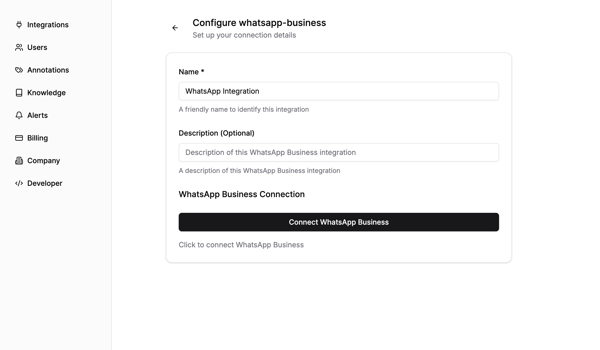
Give your integration a name and click on "Connect WhatsApp Business."
-
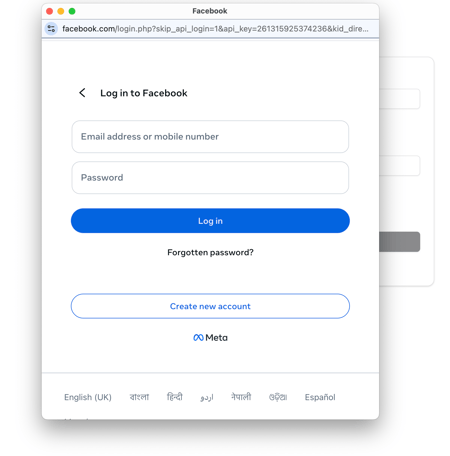
- Next, you will see a pop-up to log in to Facebook, select the account associated with your Facebook Business Manager.
- Continue with Twilio Registration using your WhatsApp Business number.

-
After submitting the registration, wait for approval from Twilio / Meta.
4. Approve the access request to Twilio
Once this information is received by the Peakflo team, they will send a request to Twilio and you can verify the Twilio request through your Meta Business Manager.
Open your Meta Business Manager "Settings", under "Requests" and you will be able to "Approve" the Twilio Request..png?width=600&height=375&name=image%20(55).png)
5. Set up the Official WhatsApp for Business Account:
For setting up your Official WhatsApp for Business, please share the below information with the Peakflo support team.- WhatsApp Display Name: (The WhatsApp display name must match the business name and the Meta Business Manager's name.)
- Website link: (Your company's website)
- Brand Introduction: (Company profile)
- Media coverage and notable awards: ( PRs and links that cover company announcements, news, and awards)
- Social footprints: (Your company social media links)
Please check this link to see an example of the information needed for an Official WhatsApp for Business Account.
Please keep in mind WhatsApp creation will take 2-3 weeks and Official WhatsApp for Business verification will take from 1-3 weeks.
Additional Links:
For tailored and ready-made WhatsApp reminder templates, please check out this link.