---
title: How to set up approval delegations for travel requests, expenses, and expense reports?
description: Approval delegations let an approver hand their approvals to a colleague for a fixed date range, for example, while they are on leave. The delegate receives the same approval notifications as the original approver, and either person can approve.
---
[Skip to content](https://help.peakflo.co/how-to-set-up-approval-delegations-tne#main-content)
[](https://peakflo.co/)
- [Go to Customer Portal](https://help.peakflo.co/tickets-view)
- [Go to peakflo.co](https://peakflo.co/)
Open main navigation
Close main navigation
- [Go to Customer Portal](https://help.peakflo.co/tickets-view)
- [Go to peakflo.co](https://peakflo.co/)
Hello! How can we help you?
- There are no suggestions because the search field is empty.
1. [Help Center](https://help.peakflo.co/?hsLang=en)
2. [Travel & Expense Management](https://help.peakflo.co/travel-expense-management?hsLang=en)
# How to set up approval delegations for travel requests, expenses, and expense reports?
## Approval delegations let an approver hand off their approvals to a colleague for a fixed date range, for example, while they are on leave. The delegate receives the same approval notifications as the original approver, and either person can approve.
**Before you start**
- Delegations must be switched on for your company. Contact [support@peakflo.co](mailto:support@peakflo.co) if this feature is missing in your tenant
- Everyone can manage their own delegations; no special permission needed. To create or edit delegations on behalf of other people, a user needs the Delegate All Users permission.
### **Create a delegation**
1\. From the left sidebar, go to **Settings,** then **Approval Delegations**.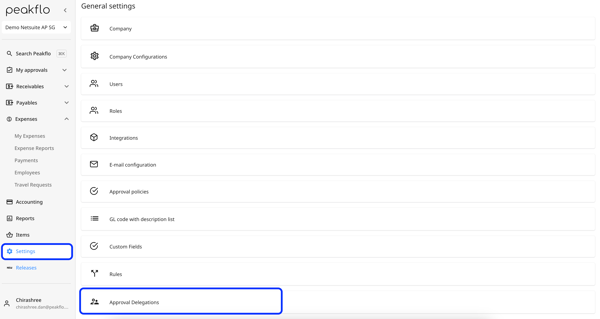
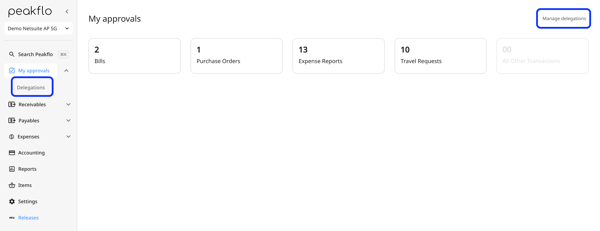
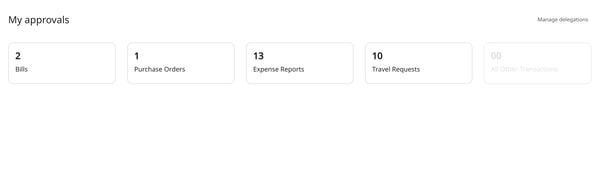
You can also reach it from the left sidebar **My approvals,** then click **Delegations**, or from the **Manage delegations** button at the top of your **My approvals** dashboard.
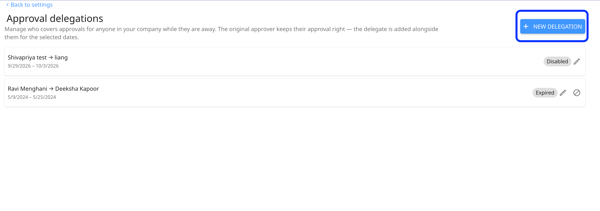
2\. The **Approval Delegations** page lists the delegations you can see. Click **+ New delegation** at the top right to create a new delegation.
3\. Now fill out the fields as follows:
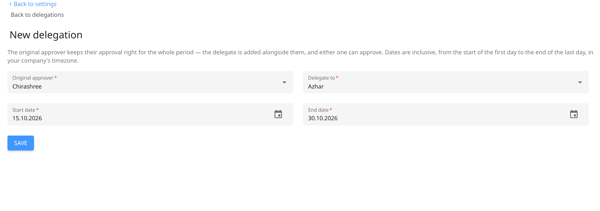
- The **Original approver** is the person whose approvals are being delegated.
- If you are delegating your own approvals, this field is pre-filled with **You** and cannot be changed.
- If you have the **Delegate all users** permission, this becomes a searchable picker so you can set up a delegation for anyone in your company.
- Open the **Delegate to** picker and search for the colleague who should cover the approvals. Pick one person per delegation.
- Set the **Start date** and **End date.** Both dates are **inclusive**: the delegation begins at 00:00 on the start date and ends at 23:59 on the end date, in your company's time zone.
4\. Save the delegation. You will see a confirmation message and be returned to the delegations list.
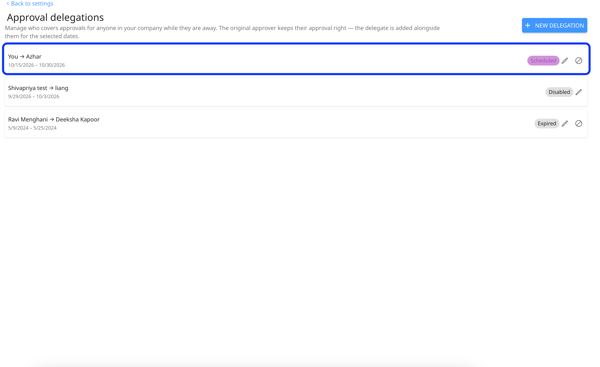
**Delegation statuses**
| Status | What it means |
| --- | --- |
| **Active** | Today is within the date range. The delegate can approve and is receiving notifications right now. |
| **Scheduled** | The start date is in the future. Nothing has changed yet — the delegate gains access automatically on the start date. |
| **Expired** | The end date has passed. Approvals went back to the original approver automatically; no action was needed. |
| **Disabled** | Someone turned the delegation off manually before it ended. The delegate no longer has access. |
### **How does the delegate approve?**
While a delegation is active, every approval notification the original approver receives is also sent to the delegate.

The item also appears on the delegate's **My approvals** page.
****
### **FAQs**
**How to edit a delegation?**
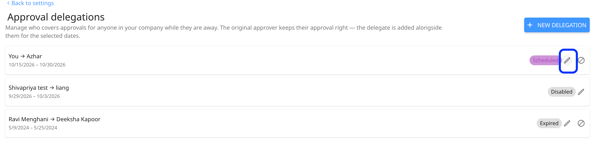
To edit a delegation, click the **Pencil icon** or the delegation’s row to reopen it. You can then change the delegate, start date, or end date. The Save button becomes available only after you make a change. Click Save to apply your updates.
**How to disable a delegation?**
To disable a delgation click on the **⊘ icon**.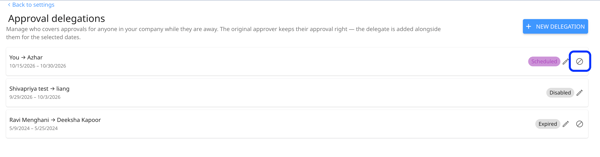
Next, confirm your choice in the dialog that appears. Once confirmed, the delegation is disabled immediately, and the delegate loses access to the delegated approvals.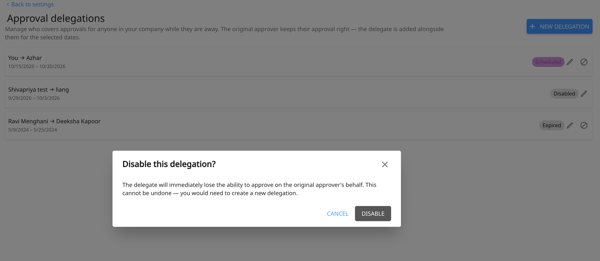
You can manage delegations where you are the original approver. If you have the Delegate all users permission, you can manage delegations for anyone in your company. Disabling a delegation cannot be undone. To restore approval coverage, create a new delegation.
**Does the original approver stop receiving notifications?**
No. The original approver keeps receiving every approval notification as usual. The delegate is added to those notifications, not substituted for the original approver.
**Do both people have to approve?**
No. One approval is enough. Whoever acts first — the original approver or the delegate.
**What happens to items already waiting for approval when the delegation starts?**
They become available to the delegate as soon as the delegation is active. Access is evaluated at the moment of the approval decision, so items already pending are covered too.
**Can the delegate see anything else in my account?**
No. A delegation only adds approval rights for the items the original approver would have approved during those dates. It grants no other access and does not change the delegate's role or permissions.
- [New to Peakflo?](https://help.peakflo.co/new-to-peakflo?hsLang=en)
- [Accounts Payable](https://help.peakflo.co/accounts-payable?hsLang=en#main-content)
- [Getting Started](https://help.peakflo.co/accounts-payable?hsLang=en#getting-started)
- [Rules](https://help.peakflo.co/accounts-payable?hsLang=en#rules)
- [Approval Workflow](https://help.peakflo.co/accounts-payable?hsLang=en#approval-workflow)
- [Custom Fields](https://help.peakflo.co/accounts-payable?hsLang=en#custom-fields)
- [Vendors](https://help.peakflo.co/accounts-payable?hsLang=en#vendors)
- [Purchase Requests](https://help.peakflo.co/accounts-payable?hsLang=en#purchase-requests)
- [Purchase Quotes](https://help.peakflo.co/accounts-payable?hsLang=en#purchase-quotes)
- [Purchase Orders](https://help.peakflo.co/accounts-payable?hsLang=en#purchase-orders)
- [OCR](https://help.peakflo.co/accounts-payable?hsLang=en#ocr)
- [Bill Management](https://help.peakflo.co/accounts-payable?hsLang=en#bill-management)
- [My Approvals](https://help.peakflo.co/accounts-payable?hsLang=en#my-approvals)
- [Goods Receipt Notes & Service Receipt Notess](https://help.peakflo.co/accounts-payable?hsLang=en#goods-receipt-notes-service-receipt-notess)
- [Budget](https://help.peakflo.co/accounts-payable?hsLang=en#budget)
- [Reconciliation](https://help.peakflo.co/accounts-payable?hsLang=en#reconciliation)
- [Reports](https://help.peakflo.co/accounts-payable?hsLang=en#reports)
- [Wallet & Transactions](https://help.peakflo.co/accounts-payable?hsLang=en#wallet-transactions)
- [Payments](https://help.peakflo.co/accounts-payable?hsLang=en#payments)
- [Vendor Onboarding Management](https://help.peakflo.co/accounts-payable?hsLang=en#vendor-onboarding-management)
- [Vendor Portal](https://help.peakflo.co/accounts-payable?hsLang=en#vendor-portal)
- [WhatsApp Vendor Portal](https://help.peakflo.co/accounts-payable?hsLang=en#whatsapp-vendor-portal)
- [Three-way Matching](https://help.peakflo.co/accounts-payable?hsLang=en#three-way-matching)
- [Accounts Receivable](https://help.peakflo.co/accounts-receivable?hsLang=en#main-content)
- [Getting Started](https://help.peakflo.co/accounts-receivable?hsLang=en#getting-started)
- [Invoice Management](https://help.peakflo.co/accounts-receivable?hsLang=en#invoice-management)
- [Workflow Management](https://help.peakflo.co/accounts-receivable?hsLang=en#workflow-management)
- [Actions](https://help.peakflo.co/accounts-receivable?hsLang=en#actions)
- [Customer Management](https://help.peakflo.co/accounts-receivable?hsLang=en#customer-management)
- [Customer Portal](https://help.peakflo.co/accounts-receivable?hsLang=en#customer-portal)
- [Collections](https://help.peakflo.co/accounts-receivable?hsLang=en#collections)
- [Reports](https://help.peakflo.co/accounts-receivable?hsLang=en#reports)
- [Credit Notes](https://help.peakflo.co/accounts-receivable?hsLang=en#credit-notes)
- [Integrations Page](https://help.peakflo.co/integrations-page?hsLang=en#main-content)
- [Basics](https://help.peakflo.co/integrations-page?hsLang=en#basics)
- [Peakflo API](https://help.peakflo.co/integrations-page?hsLang=en#peakflo-api)
- [Xero](https://help.peakflo.co/integrations-page?hsLang=en#xero)
- [NetSuite](https://help.peakflo.co/integrations-page?hsLang=en#netsuite)
- [Jurnal](https://help.peakflo.co/integrations-page?hsLang=en#jurnal)
- [Quickbooks](https://help.peakflo.co/integrations-page?hsLang=en#quickbooks)
- [Microsoft Dynamics 365 Business Central](https://help.peakflo.co/integrations-page?hsLang=en#microsoft-dynamics-365-business-central)
- [Microsoft Dynamics 365 Finance & Operations](https://help.peakflo.co/integrations-page?hsLang=en#microsoft-dynamics-365-finance-operations)
- [Zalo](https://help.peakflo.co/integrations-page?hsLang=en#zalo)
- [SFTP](https://help.peakflo.co/integrations-page?hsLang=en#sftp)
- [SAP](https://help.peakflo.co/integrations-page?hsLang=en#sap)
- [Travel & Expense Management](https://help.peakflo.co/travel-expense-management?hsLang=en)
- [Payment Automation](https://help.peakflo.co/payment-automation?hsLang=en)
- [Reports](https://help.peakflo.co/reports?hsLang=en)
- [Legal Notes](https://help.peakflo.co/legal-notes?hsLang=en)
- [General Questions](https://help.peakflo.co/general-questions?hsLang=en)
- [Guides for Partners](https://help.peakflo.co/guides-for-partners?hsLang=en)
- [Latest Releases](https://help.peakflo.co/latest-releases?hsLang=en)
- [Offboarding](https://help.peakflo.co/offboarding?hsLang=en)
- [Peakflo Ticket Portal](https://help.peakflo.co/peakflo-ticket-portal?hsLang=en)
- [Peakflo 20X](https://help.peakflo.co/peakflo-20x?hsLang=en)
[](http://peakflo.co)
peakflo.co Help Center
Copyright © 2026, Peakflo