
Users can customize how data is displayed in tables. Available configurations include:
Table preferences are saved at the individual user level. This means each user can customize their own table view without changing how it appears for others.
Your table view is saved automatically. When you return to Peakflo, it will display the same customized view you previously set rather than reverting to the default layout.
1. Rearrange column order based on user preference.
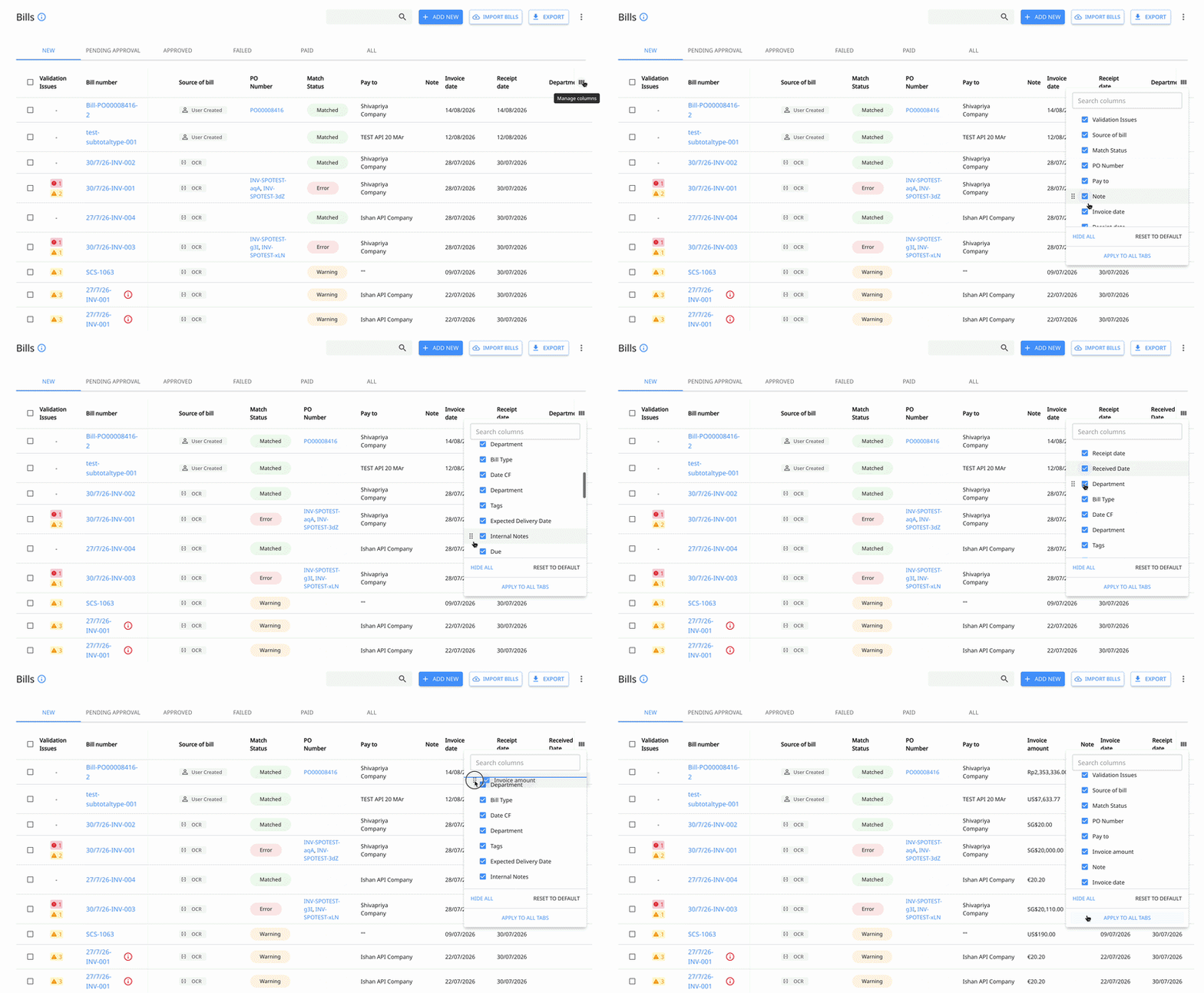
Use the “Apply to all tabs” option to extend your table customizations to every tab, including “New,” “Pending Approval,” and “Approved.”
To remove your customizations and restore the original table layout, select “Reset to default.”
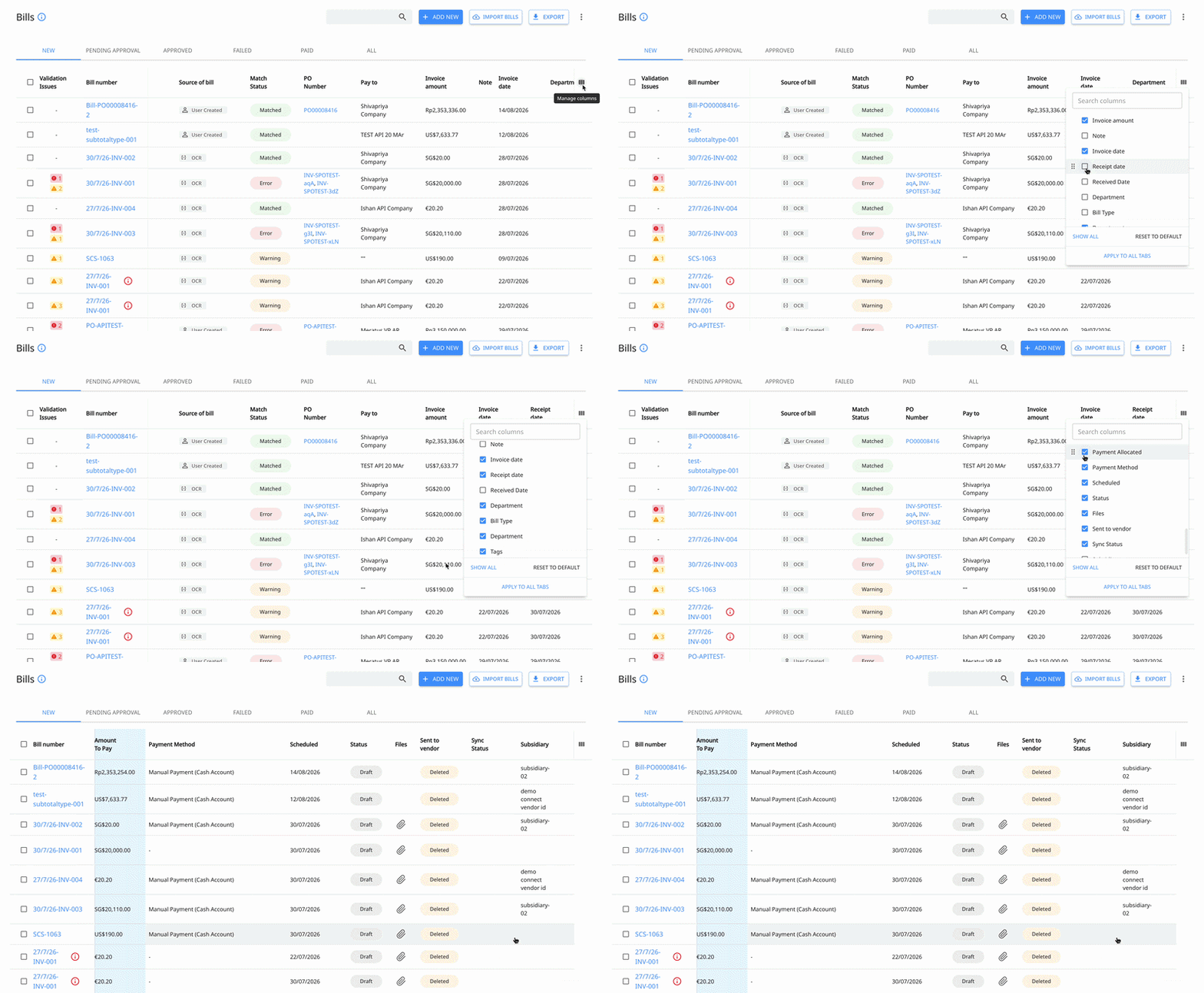
2. Add or remove available columns from the table view.
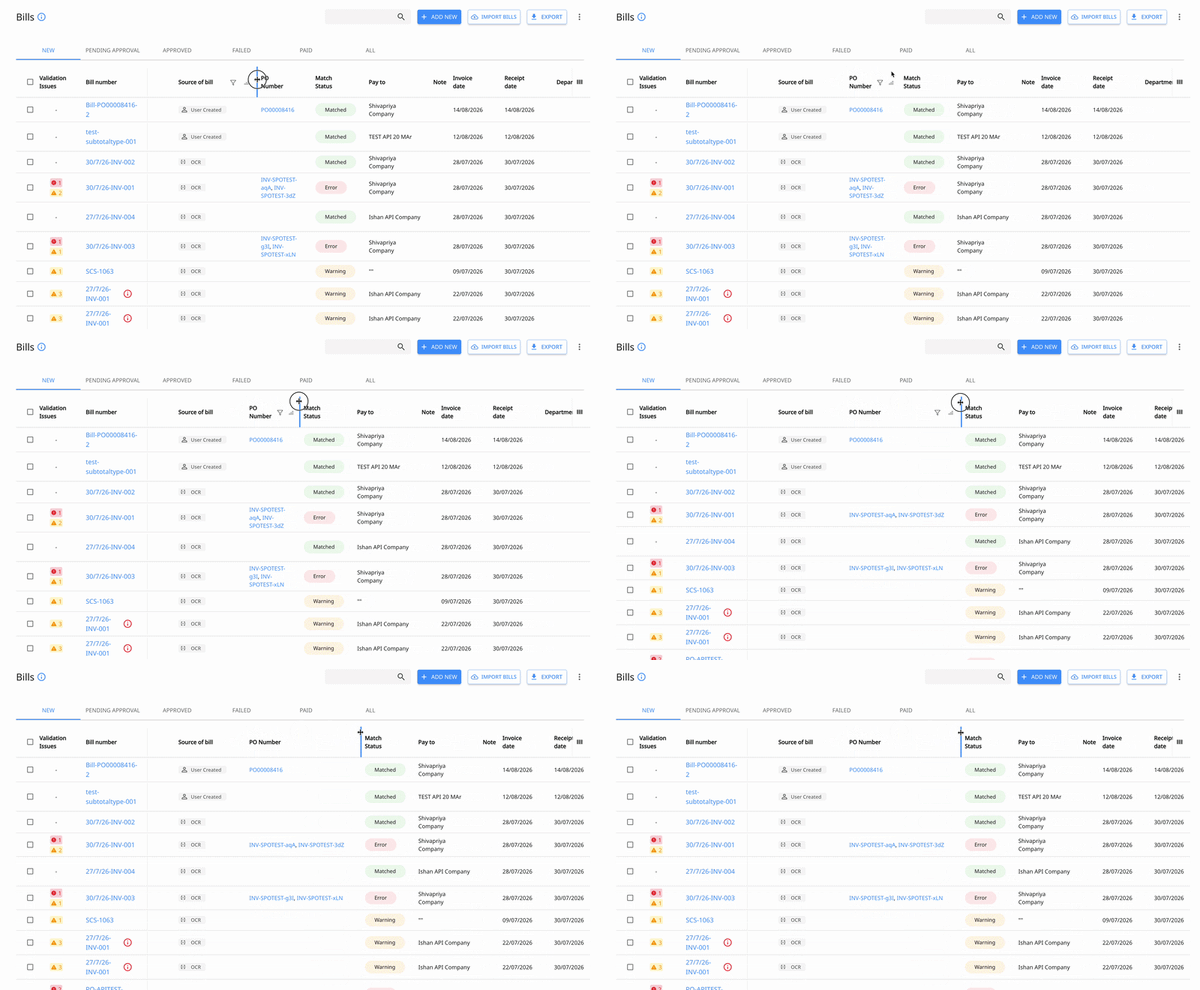
3. Increase or decrease column width.
4. Show or hide custom fields where supported. To learn more about how to customize custom fields, read the complete article here: What are custom fields and how to add them?