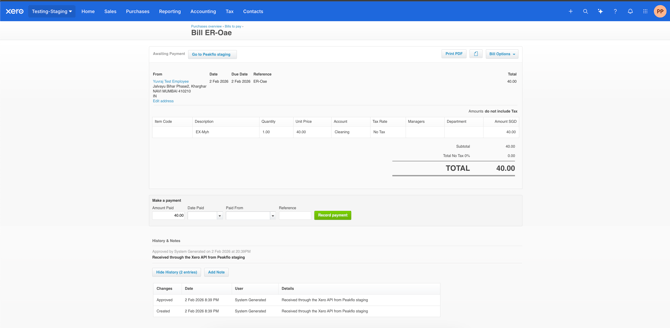
When an expense report is approved in Peakflo, it is pushed to Xero as an approved Bill against the employee, ready to be reimbursed. The sync runs one way only, from Peakflo to Xero, so Peakflo stays the source of truth for the report. Each expense report becomes one bill. Each expense in the report becomes one line on that bill, coded to the Xero account mapped to its expense category.
An expense report syncs to Xero once it is fully approved in Peakflo. No manual export is needed.
- The employee submits the expense report in Peakflo.
- Approvers approve it through your approval workflow.
- Peakflo creates the bill in Xero with status Approved, so it appears under Awaiting Payment.
- The bill's history records that it was received through the Xero API from Peakflo.
In Xero, go to Purchases overview → Bills to pay → Awaiting Payment and search for the expense report ID.