
This article covers how to:
- Create and send a Purchase Quotation from an approved Purchase Request
- Receive vendor quotations by email
- Automatically update the PQ with quotation details
- Track quotation activity in the Timeline
- Compare multiple vendor quotations using the Bidding Matrix
Create a Purchase Quotation from a Purchase Request
Before creating a Purchase Quotation, make sure the Purchase Request (PR) is in the Approved state.
- Go to the Approved tab under Purchase Requests in Peakflo.
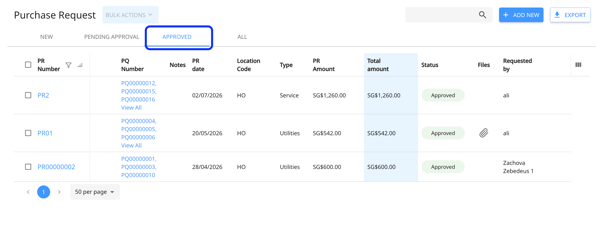
- Open the approved Purchase Request for which you want to request quotations. Then click on Create PQ.
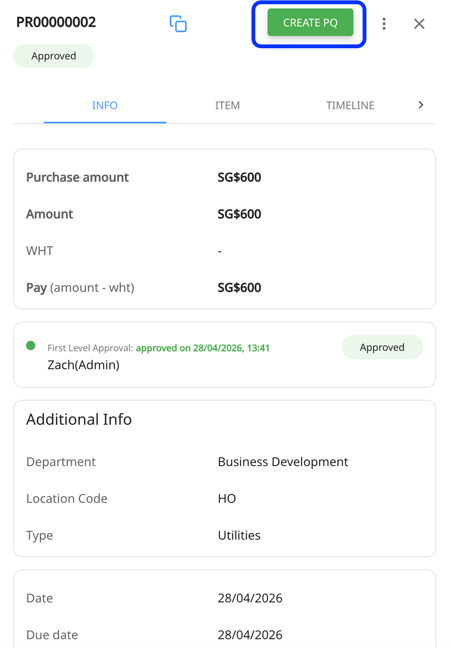
- Select the line items you want to include in the quotation request.
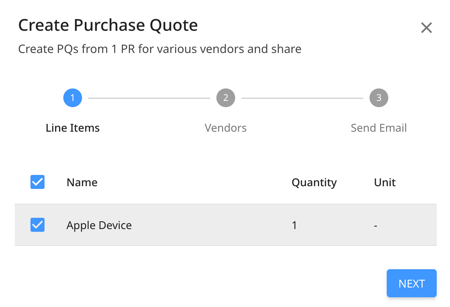
- Next, select the vendor from the Vendor dropdown
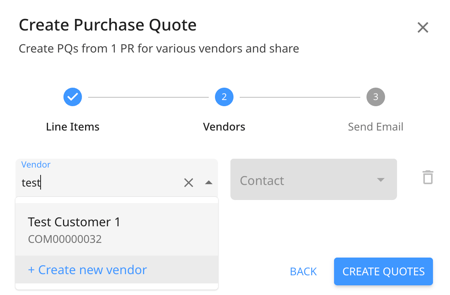
- Then add the relevant vendor contact email under the Contact drop down.
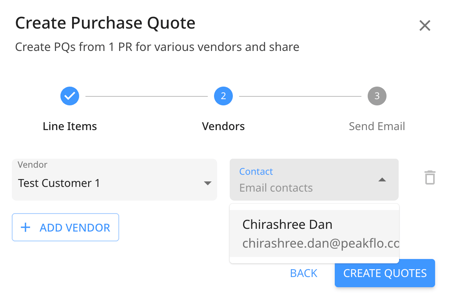
- You can add multiple vendors and vendor contacts. If you select multiple vendors, Peakflo sends the quotation request to each vendor separately and to the relevant vendor contact.
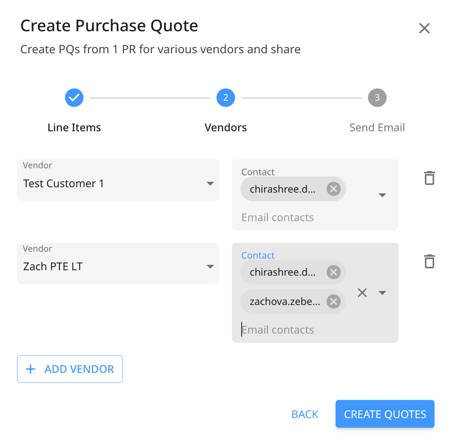
- Click Create Quotes.
- Peakflo generates an email requesting a quotation from the vendor. You can review and edit the email before sending it.
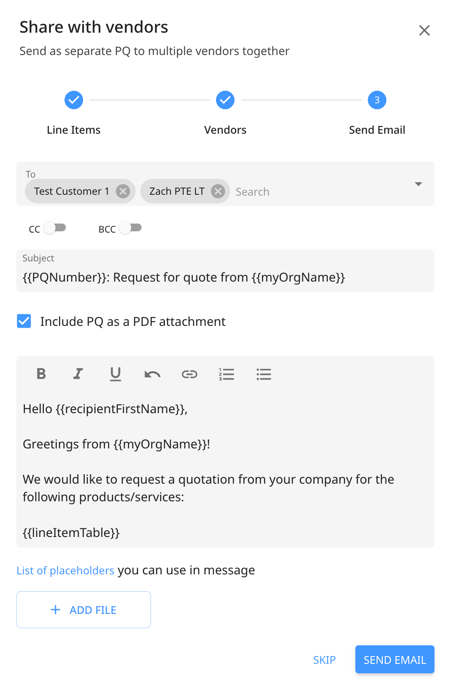
- Click Send Email to share the email with the vendors.
- Peakflo automatically creates a draft Purchase Quote. The relevant details from the Purchase Request, including line items, are carried over to the PQ.
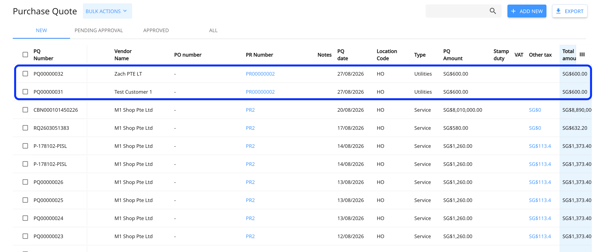
Vendor replies with a quotation
1. The vendor receives an email with a PDF attachment requesting a quotation.
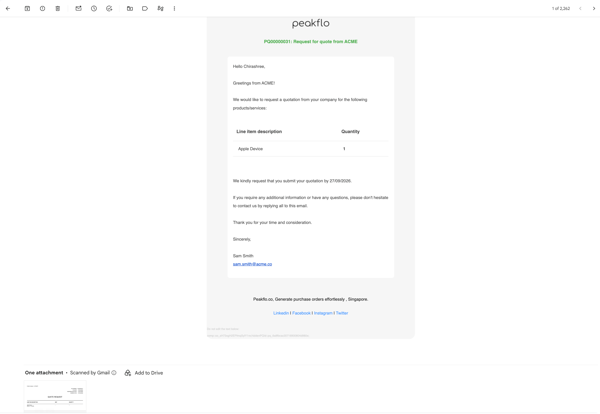
2. The vendor can respond directly to the quotation request email and attach their quotation document, such as a PDF. Then sends the email.
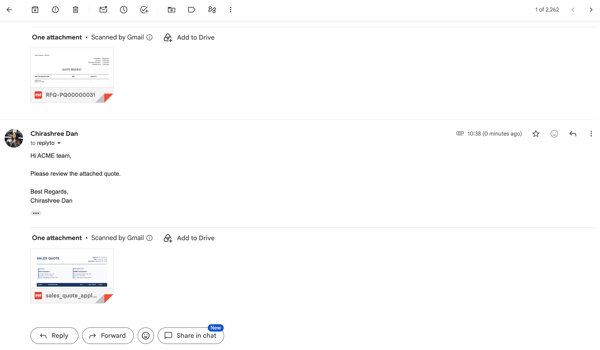
3. Peakflo uses the vendor's email response and quotation attachment to identify and process the quotation.
Peakflo automatically updates the Purchase Quotation
Once Peakflo receives the vendor's email, it automatically processes the quotation attachment. Within approximately 1–2 minutes, Peakflo extracts the quotation details and updates the corresponding Purchase Quote.
When you open the PQ, the extracted information is reflected automatically.
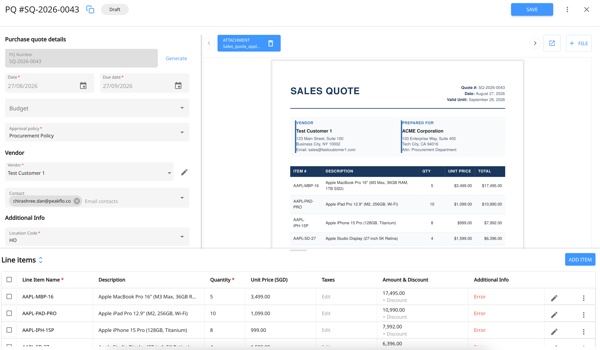
Depending on the quotation, this can include:
- Updated line-item details
- Pricing or quantity changes
- Vendor quotation reference or number
The vendor's quotation document is also stored as an attachment on the PQ for future reference.
This removes the need to manually:
- Monitor vendor email responses
- Download quotation attachments
- Read quotation details
- Enter quotation information into the PQ
If a vendor revises their quotation and sends a new quotation document in the same email thread, Peakflo processes the latest valid quotation attachment.
The most recent quotation is reflected on the PQ automatically.
Previous quotation attachments remain stored, allowing you to access earlier versions when needed.
Track quotation activity in the Timeline
Peakflo maintains a history of the quotation activity in the Timeline.
Open the Timeline tab on the Purchase Quotation to view the sequence of events, including:
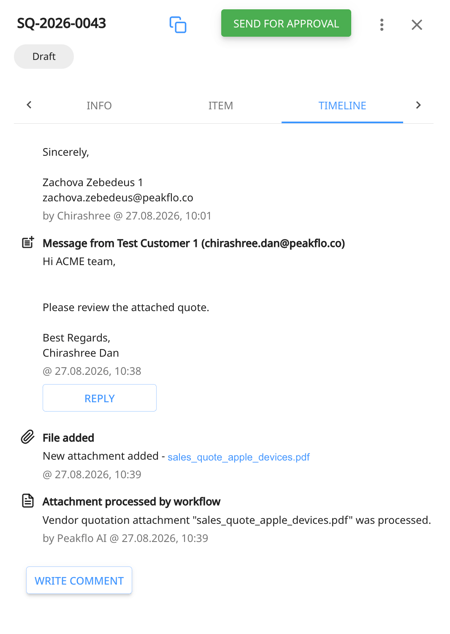
- The PQ created from the Purchase Request
- The quotation request email sent to the vendor
- The vendor's reply with the quotation attachment
- The automatic PQ update performed by Peakflo
This provides a traceable record of the quotation process and makes it easier to review how the PQ was updated.
Compare vendor quotations using the Bidding Matrix
When you request quotations from multiple vendors, each vendor's quotation is captured in its respective Purchase Quotation.
You can compare the quotations using the Bidding Matrix.
The Bidding Matrix provides a consolidated view of quotations received from multiple vendors for the same Purchase Request.
Compare quotations
In the Bidding Matrix:
- Each Purchase Request appears as a row.
- Vendors who submitted quotations appear as columns.
- The quoted amount from each vendor is displayed side by side.
- The lowest bid is highlighted for each Purchase Request.
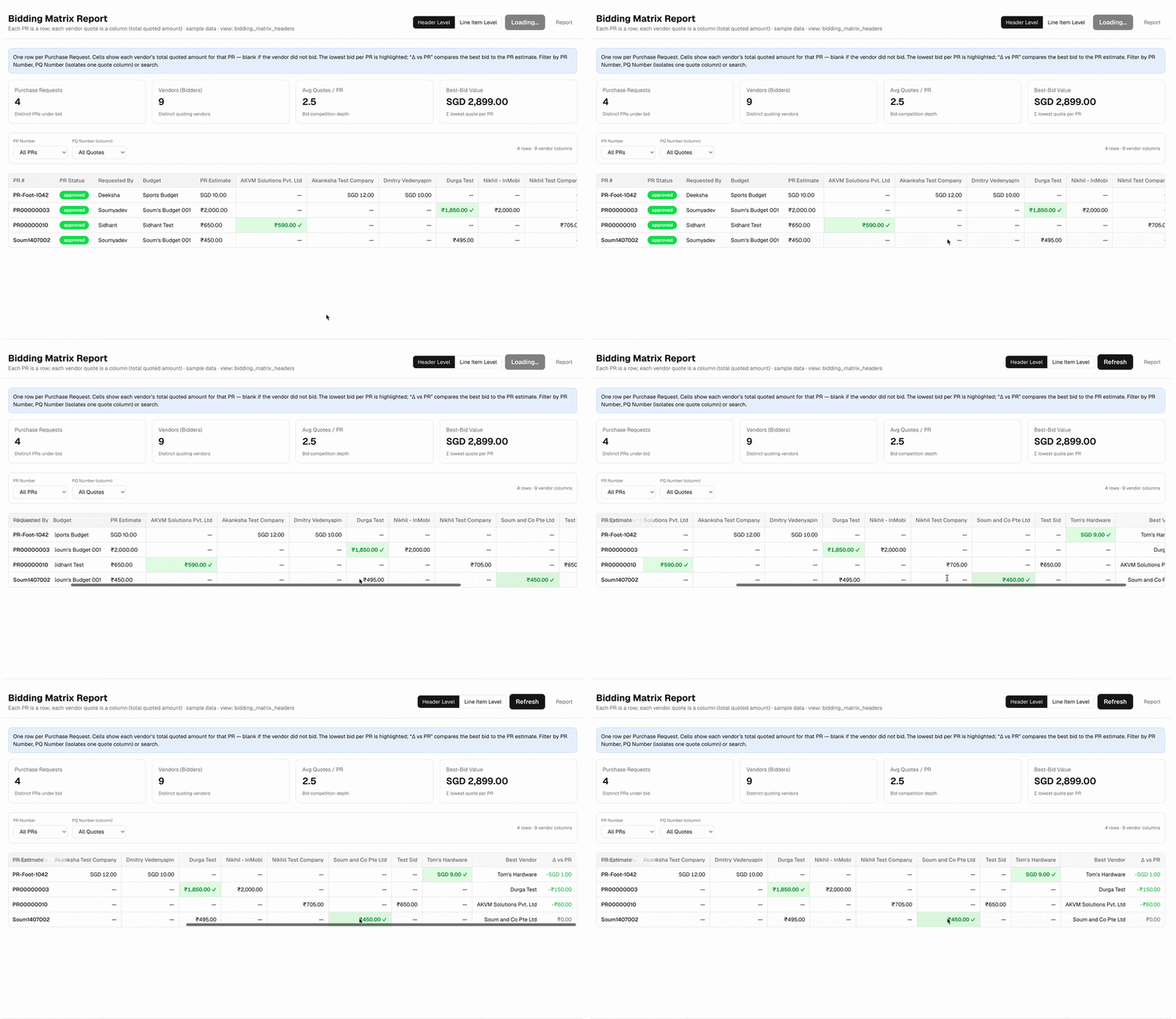
This makes it easier to compare vendor pricing and identify the best-priced quotation.
Filter the Bidding Matrix
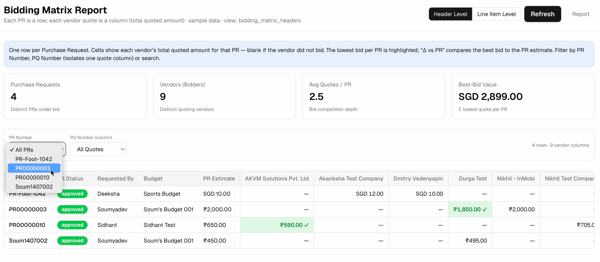
You can filter the report by:
- Purchase Request number
- PQ number
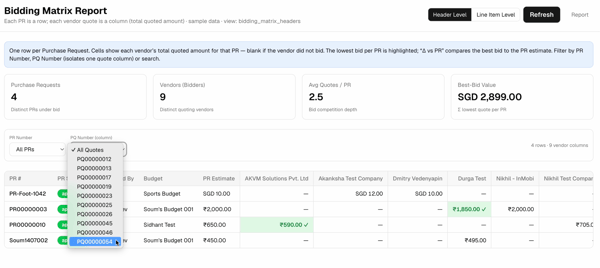
This helps you quickly locate a specific quotation or bidding activity.
Header Level and Line Item Level
The Bidding Matrix can be viewed at both the Header Level and Line Item Level.
At the Line Item Level, you can:
- Filter by Purchase Request number
- Filter by PQ number
- Search for specific line item names
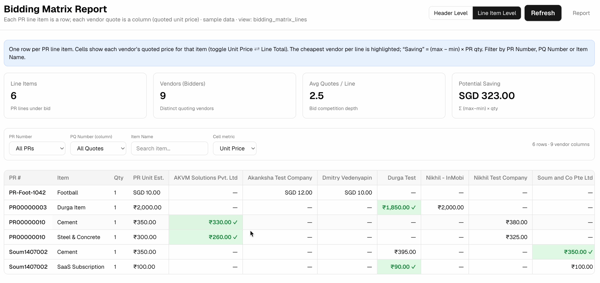
This gives procurement teams a more detailed view when comparing quotations for individual items.