---
title: How does automatic GL coding work for non-PO invoices in Peakflo?
description: In this article, learn how GL coding works for non-PO invoices in Peakflo.
---
[Skip to content](https://help.peakflo.co/how-does-gl-coding-works-for-non-po-invoices-in-peakflo#main-content)
[](https://peakflo.co/)
- [Go to Customer Portal](https://help.peakflo.co/tickets-view)
- [Go to peakflo.co](https://peakflo.co/)
Open main navigation
Close main navigation
- [Go to Customer Portal](https://help.peakflo.co/tickets-view)
- [Go to peakflo.co](https://peakflo.co/)
Hello! How can we help you?
- There are no suggestions because the search field is empty.
1. [Help Center](https://help.peakflo.co/?hsLang=en)
2. [Accounts Payable](https://help.peakflo.co/accounts-payable?hsLang=en)
3. [Bill Management](https://help.peakflo.co/accounts-payable?hsLang=en#bill-management)
# How does automatic GL coding work for non-PO invoices in Peakflo?
## When a bill is processed through OCR, Peakflo automatically assigns the GL account and required fields using AI. The system learns from past approvals and improves accuracy over time, reducing manual work.
### **Auto-GL code assignment on bills**
When a non-PO bill is processed through OCR:
- The Peakflo AI understands the bill content by reading the header and line item details (such as vendor, unit price, line itemdescription, etc.).
- AI identifies the type of expense (for example: software, rent, utilities, marketing, etc.).
- Auto-assigns the appropriate GL codes for each line item.
While you are editing a bill, you can continue to update the Chart of Accounts (COA) as needed.
The system continuously learns from the changes you make, the bills you approve, and historical booking patterns. As more data is processed, the auto-assignment of GL accounts becomes increasingly accurate, which helps minimize manual coding and improves overall efficiency in your accounts payable process.
This ensures that bills are consistently coded in line with your chart of accounts structure without requiring manual data entry for each new bill.
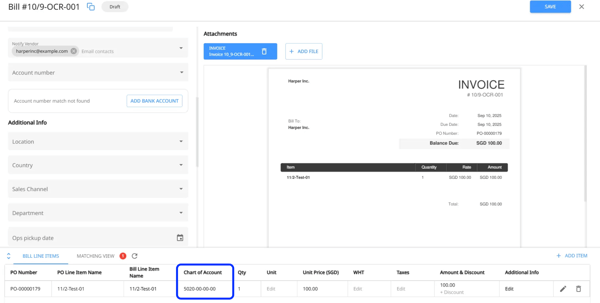
If a GL account was auto-assigned, you will see an AI icon next to the account. When you hover over it, you’ll see: “**Auto assigned by AI**.”
- [New to Peakflo?](https://help.peakflo.co/new-to-peakflo?hsLang=en)
- [Accounts Payable](https://help.peakflo.co/accounts-payable?hsLang=en#main-content)
- [Getting Started](https://help.peakflo.co/accounts-payable?hsLang=en#getting-started)
- [Rules](https://help.peakflo.co/accounts-payable?hsLang=en#rules)
- [Approval Workflow](https://help.peakflo.co/accounts-payable?hsLang=en#approval-workflow)
- [Custom Fields](https://help.peakflo.co/accounts-payable?hsLang=en#custom-fields)
- [Vendors](https://help.peakflo.co/accounts-payable?hsLang=en#vendors)
- [Purchase Requests](https://help.peakflo.co/accounts-payable?hsLang=en#purchase-requests)
- [Purchase Quotes](https://help.peakflo.co/accounts-payable?hsLang=en#purchase-quotes)
- [Purchase Orders](https://help.peakflo.co/accounts-payable?hsLang=en#purchase-orders)
- [OCR](https://help.peakflo.co/accounts-payable?hsLang=en#ocr)
- [Bill Management](https://help.peakflo.co/accounts-payable?hsLang=en#bill-management)
- [My Approvals](https://help.peakflo.co/accounts-payable?hsLang=en#my-approvals)
- [Goods Receipt Notes & Service Receipt Notess](https://help.peakflo.co/accounts-payable?hsLang=en#goods-receipt-notes-service-receipt-notess)
- [Budget](https://help.peakflo.co/accounts-payable?hsLang=en#budget)
- [Reconciliation](https://help.peakflo.co/accounts-payable?hsLang=en#reconciliation)
- [Reports](https://help.peakflo.co/accounts-payable?hsLang=en#reports)
- [Wallet & Transactions](https://help.peakflo.co/accounts-payable?hsLang=en#wallet-transactions)
- [Payments](https://help.peakflo.co/accounts-payable?hsLang=en#payments)
- [Vendor Onboarding Management](https://help.peakflo.co/accounts-payable?hsLang=en#vendor-onboarding-management)
- [Vendor Portal](https://help.peakflo.co/accounts-payable?hsLang=en#vendor-portal)
- [WhatsApp Vendor Portal](https://help.peakflo.co/accounts-payable?hsLang=en#whatsapp-vendor-portal)
- [Three-way Matching](https://help.peakflo.co/accounts-payable?hsLang=en#three-way-matching)
- [Accounts Receivable](https://help.peakflo.co/accounts-receivable?hsLang=en#main-content)
- [Getting Started](https://help.peakflo.co/accounts-receivable?hsLang=en#getting-started)
- [Invoice Management](https://help.peakflo.co/accounts-receivable?hsLang=en#invoice-management)
- [Workflow Management](https://help.peakflo.co/accounts-receivable?hsLang=en#workflow-management)
- [Actions](https://help.peakflo.co/accounts-receivable?hsLang=en#actions)
- [Customer Management](https://help.peakflo.co/accounts-receivable?hsLang=en#customer-management)
- [Customer Portal](https://help.peakflo.co/accounts-receivable?hsLang=en#customer-portal)
- [Collections](https://help.peakflo.co/accounts-receivable?hsLang=en#collections)
- [Reports](https://help.peakflo.co/accounts-receivable?hsLang=en#reports)
- [Credit Notes](https://help.peakflo.co/accounts-receivable?hsLang=en#credit-notes)
- [Integrations Page](https://help.peakflo.co/integrations-page?hsLang=en#main-content)
- [Basics](https://help.peakflo.co/integrations-page?hsLang=en#basics)
- [Peakflo API](https://help.peakflo.co/integrations-page?hsLang=en#peakflo-api)
- [Xero](https://help.peakflo.co/integrations-page?hsLang=en#xero)
- [NetSuite](https://help.peakflo.co/integrations-page?hsLang=en#netsuite)
- [Jurnal](https://help.peakflo.co/integrations-page?hsLang=en#jurnal)
- [Quickbooks](https://help.peakflo.co/integrations-page?hsLang=en#quickbooks)
- [Microsoft Dynamics 365 Business Central](https://help.peakflo.co/integrations-page?hsLang=en#microsoft-dynamics-365-business-central)
- [Microsoft Dynamics 365 Finance & Operations](https://help.peakflo.co/integrations-page?hsLang=en#microsoft-dynamics-365-finance-operations)
- [Zalo](https://help.peakflo.co/integrations-page?hsLang=en#zalo)
- [SFTP](https://help.peakflo.co/integrations-page?hsLang=en#sftp)
- [SAP](https://help.peakflo.co/integrations-page?hsLang=en#sap)
- [Travel & Expense Management](https://help.peakflo.co/travel-expense-management?hsLang=en)
- [Payment Automation](https://help.peakflo.co/payment-automation?hsLang=en)
- [Reports](https://help.peakflo.co/reports?hsLang=en)
- [Legal Notes](https://help.peakflo.co/legal-notes?hsLang=en)
- [General Questions](https://help.peakflo.co/general-questions?hsLang=en)
- [Guides for Partners](https://help.peakflo.co/guides-for-partners?hsLang=en)
- [Latest Releases](https://help.peakflo.co/latest-releases?hsLang=en)
- [Offboarding](https://help.peakflo.co/offboarding?hsLang=en)
- [Peakflo Ticket Portal](https://help.peakflo.co/peakflo-ticket-portal?hsLang=en)
- [Peakflo 20X](https://help.peakflo.co/peakflo-20x?hsLang=en)
[](http://peakflo.co)
peakflo.co Help Center
Copyright © 2026, Peakflo