---
title: "Getting started with Accounts Receivable: Collections Team"
description: Collections team can create customers, add credit notes, check payments, view receivable reports among others. Read on to understand this in detail.
---
[Skip to content](https://help.peakflo.co/getting-started-ar-collections-team#main-content)
[](https://peakflo.co/)
- [Go to Customer Portal](https://help.peakflo.co/tickets-view)
- [Go to peakflo.co](https://peakflo.co/)
Open main navigation
Close main navigation
- [Go to Customer Portal](https://help.peakflo.co/tickets-view)
- [Go to peakflo.co](https://peakflo.co/)
Hello! How can we help you?
- There are no suggestions because the search field is empty.
1. [Help Center](https://help.peakflo.co/?hsLang=en)
2. [Accounts Receivable](https://help.peakflo.co/accounts-receivable?hsLang=en)
3. [Getting Started](https://help.peakflo.co/accounts-receivable?hsLang=en#getting-started)
# Getting started with Accounts Receivable: Collections Team
Collections team can create customers, add credit notes, check payments, view receivable reports among others. Read on to understand this in detail.
We will walk you through the various sections in the following sequence:
1. [Customers](https://help.peakflo.co/getting-started-ar-collections-team#customers)
2. [Invoices](https://help.peakflo.co/getting-started-ar-collections-team#invoices)
3. [Workflow reminders](https://help.peakflo.co/getting-started-ar-collections-team#workflows)
4. [Customer (Payer) portal](https://help.peakflo.co/getting-started-ar-collections-team#portal)
5. [Payments](https://help.peakflo.co/getting-started-ar-collections-team#payments)
6. [Credit notes](https://help.peakflo.co/getting-started-ar-collections-team#credit)
7. [Reports](https://help.peakflo.co/getting-started-ar-collections-team#report)
---
### Customers
We have the **Customers** section in the **Receivables** module.
Customer details have a 2-way sync between Peakflo and your accounting system. All customers created in your accounting system will be present in your Peakflo account and vice versa. The synchronization happens every 5 minutes.
Customers can also be mass-uploaded into Peakflo. Read [how to mass upload customer data](https://help.peakflo.co/how-to-upload-contacts?hsLang=en) to understand the process.
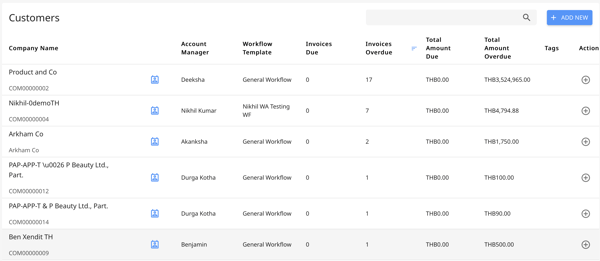
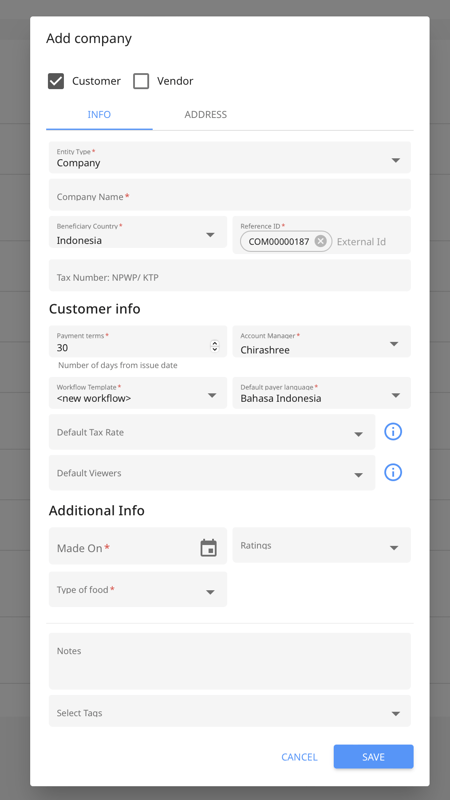
Customers can also be entered one by one from the Peakflo UI by clicking on the **Add New** button at the top right of the screen.
---
### Invoices
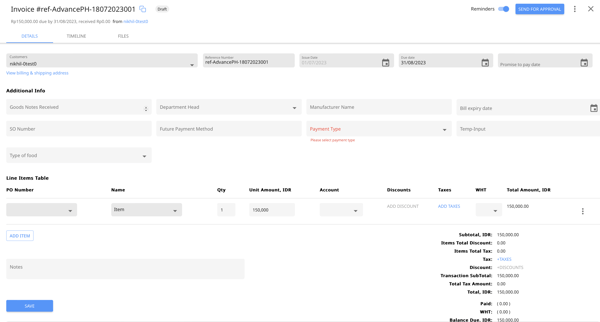
Using Peakflo, the collections team can view all the invoice details. This makes it easier for you to collect payments from customers.
---
### **Workflows**
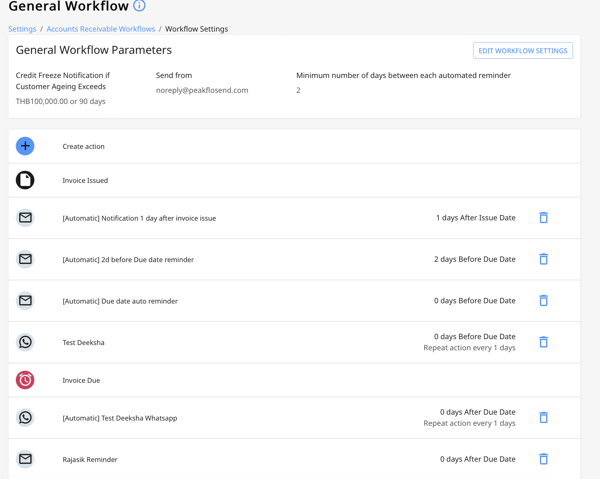
This is the meat and potatoes of the platform (unless you're a vegetarian, then this is the eggplant). Workflows are how Peakflo helps you manage your outstanding invoices and communicate with relevant stakeholders.
Would like to create a workflow? Read [how can I add a new action in the workflow?](https://help.peakflo.co/how-can-i-add-a-new-action-in-the-workflow?hsLang=en)
[****](https://help.peakflo.co/how-do-i-create-a-new-workflow?hsLang=en)
Before we get into the mechanics, let's understand some components of a workflow to make this process easier:
- Actions and action types: Actions can be added to workflows to improve the collection cycles of customers.
You can either send a reminder that a payment is due or notify someone in your company about an urgent need. Actions govern what happens to whom and how quickly. Actions can be manual or automated.
Learn more about:
- [What are actions and their different types](https://help.peakflo.co/how-can-i-add-a-new-action-in-the-workflow?hsLang=en)
- [How to add a new action to the workflow?](https://help.peakflo.co/how-can-i-add-a-new-action-in-the-workflow?hsLang=en)
- - [How can I customize my workflow action template?](https://help.peakflo.co/how-can-i-customize-my-workflow-action-template?hsLang=en)
- Triggers: The criteria for initiating the desired action. Currently, you can set triggers based on the issue date, due date, or on a monthly basis.
- Owners: The person from the finance team & Peakflo user who takes ownership of the action tagged to them.
- Recipients: The people who receive the message - email or WhatsApp message you're creating the action for. Aside from reminders, it can also be actions such as [legal escalation.](https://help.peakflo.co/what-does-legal-escalation-mean?hsLang=en)
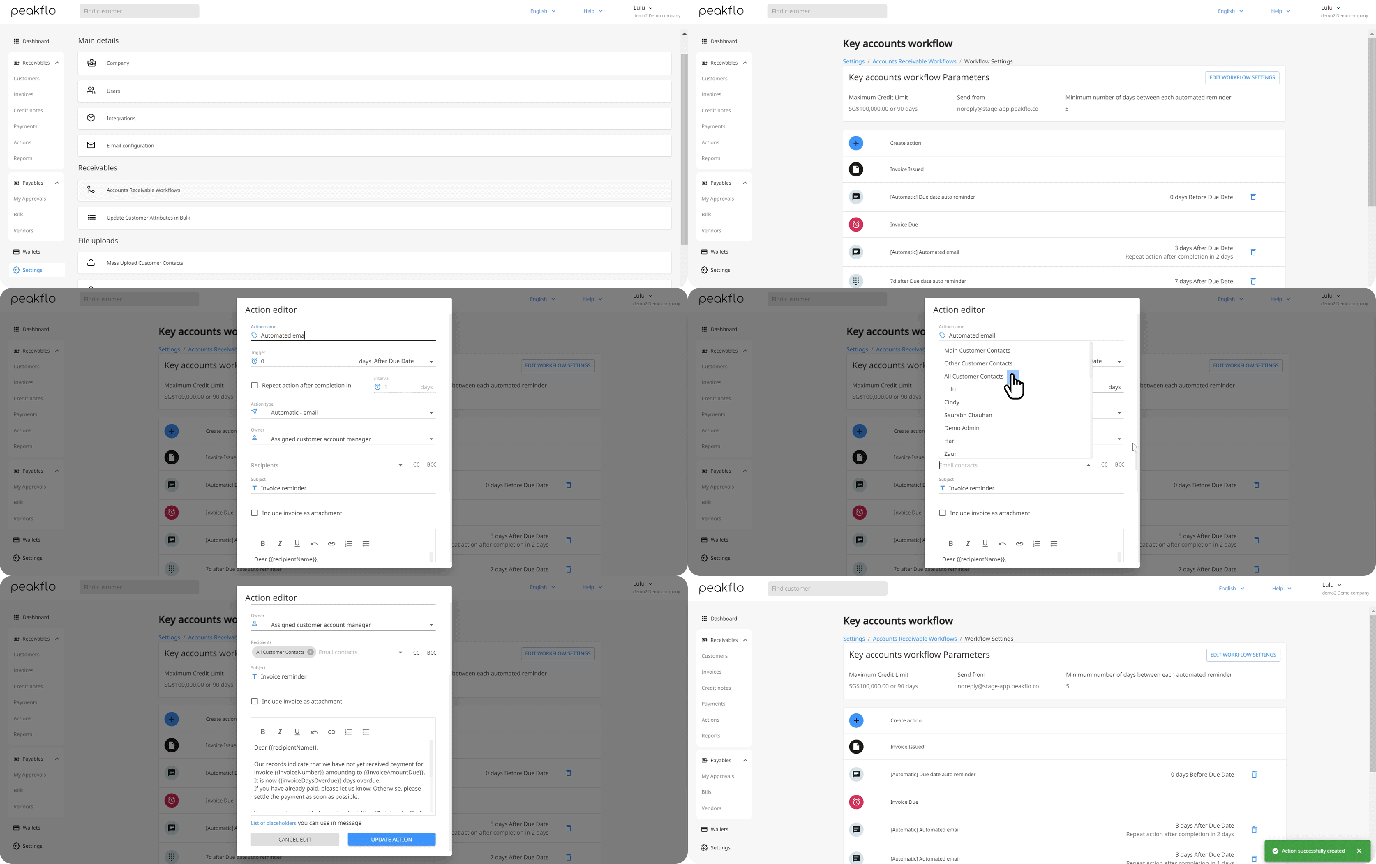
More on the GIF below on how to create a workflow and add actions:
---
### **Customer Portal**
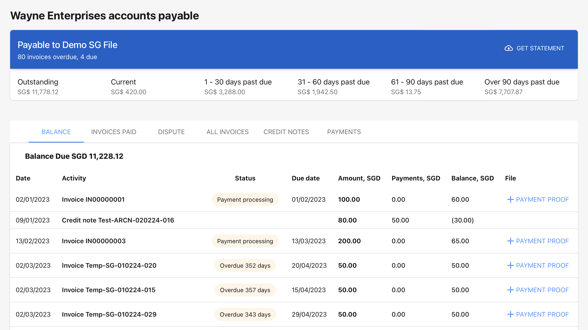
The customer portal is the one-stop-shop for customers to:
- [Make payments for those invoices](https://help.peakflo.co/how-to-pay-your-invoices-using-peakflo-portal?hsLang=en)
- [Raise any dispute](https://help.peakflo.co/how-can-i-raise-or-resolve-a-dispute?hsLang=en)
- [Download statement of account](https://help.peakflo.co/how-to-download-the-statements-of-account-from-the-payer-portal?hsLang=en)
- [Uploading payment and/or tax proof](https://help.peakflo.co/how-to-upload-payment-proof-and-tax-proof-as-a-customer?hsLang=en)
- View your credit notes
- View outstanding balances and their aging
---
### Payments
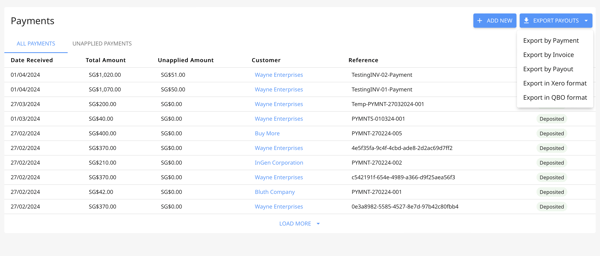
Payments are either added automatically or manually in Peakflo:
- **Automatically**, if the payment is made by the customer through the customer portal. Payment entry will automatically be added to the **Payments** tab.
- **Manually**, if the payment is made by the customer outside of Peakflo. Learn more [how to add payments in Peakflo](https://help.peakflo.co/how-to-manually-add-payments-to-peakflo?hsLang=en).
As the collections team, you can view payments made by the customers in the UI.
---
### Credit Notes
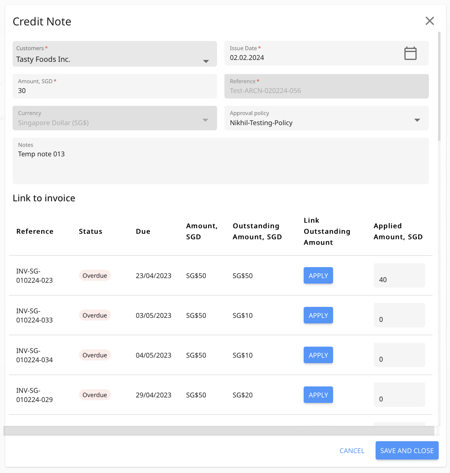
With Peakflo, you can add a credit note and link it to an invoice. This way, document any changes to the invoice and have more control on who creates and approves the credit note!
Learn more [how to create credit notes](https://help.peakflo.co/how-to-create-credit-notes-and-link-it-to-invoices?hsLang=en).
---
### **Reports & Dashboard**
Keeping track of the reports will give you more insights into your collection performance and make strategic decisions for improvements. Currently, you get the following reports & dashboard:
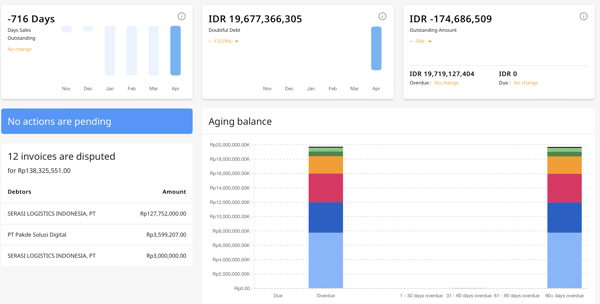
- DSO report: The average number of days your firm takes to collect money against invoices from customers after an invoice is raised. You can check your DSO health in your **Dashboard**, where you will see the numbers for the last 6 months and our goal is to reduce the metrics.
- Aging Balance report: The total that is aging in real-time. This is also visible in the Dashboard, for a more detailed report you can go to the Reports section.
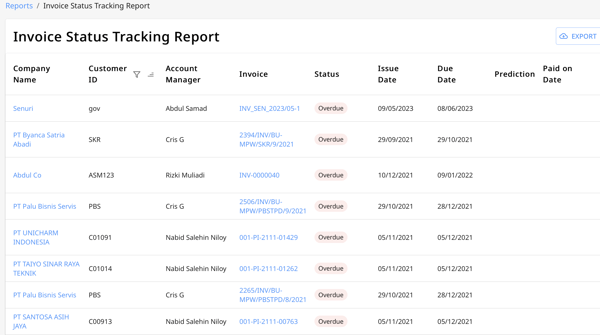
- Invoice Status Tracking Report: The report where you can check the important details of your invoices in a listed view. Read more about [how to track invoice status](https://help.peakflo.co/where-can-i-find-the-latest-invoices-statuses?hsLang=en).
- Customer Status Tracking report: The report where you can track the following for every customer:
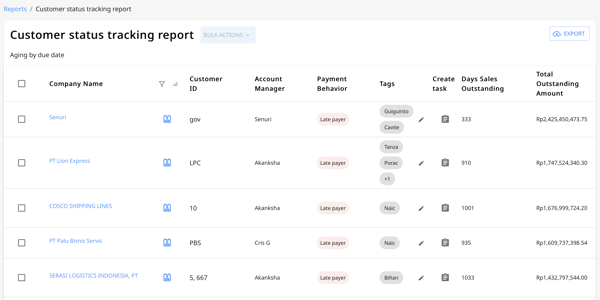
- Payment behavior: Track how timely or late a customer makes payments. There are 3 classifications:
- Early payer (pays before the due date)
- Timely payer (pays on due date)
- Late payer (pays after due date)
- Customer-level DSO: Overall DSO is never good enough. Every customer has their own DSO and we provide this information to optimize your workflows for every customer’s DSO.
- Promise-to-pay amount: Say your customer has defaulted on their due date & they cannot pay the entire amount. You can check with them how much of the due amount they can pay and set this in the promise-to-pay amount.
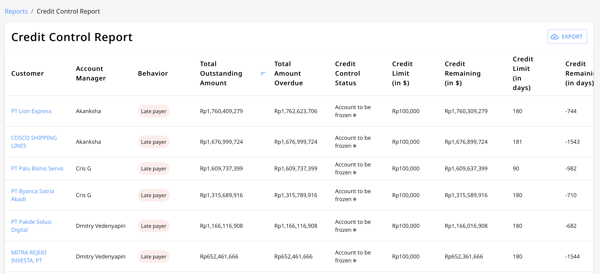
- Credit Control report:
Understand [what a credit limit is & how to set it](https://help.peakflo.co/what-is-credit-limit-and-how-can-i-use-it?hsLang=en) in Peakflo. Now use this report to track the credit given, remaining, and status in this report!
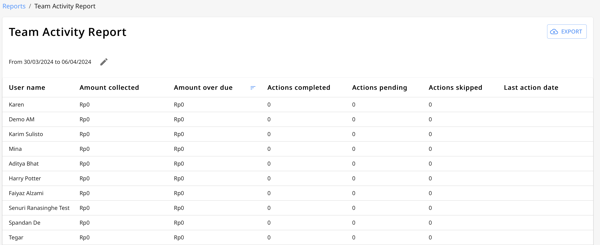
- Team Activity Report:
The purpose of this report is to track:
- The collections made by your team’s Peakflo users can be tracked here for the period you configure (as shown in the screenshot)
- You can monitor action numbers for collections. You can track:
- Action completed
- Action pending
- Action skipped
- The last action date for the selected period.
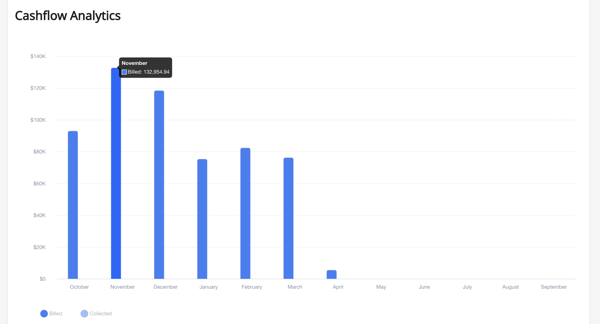
- Cash flow analytics:
There are two reports here:
- Cash flow analytics: The predicted collection for the coming months for all outstanding invoices.
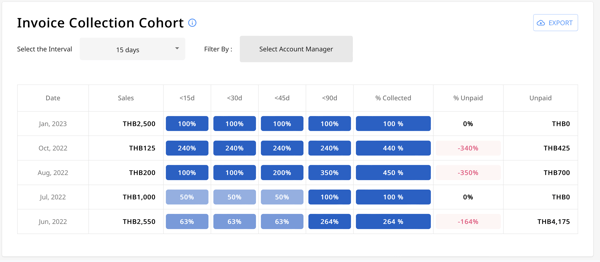
- [Invoice collection cohort](https://help.peakflo.co/what-is-invoice-collections-cohort?hsLang=en): This report is to help you gauge collection efficiency company-wide.
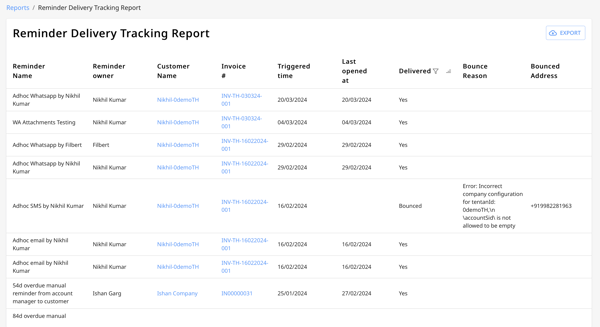
- [Reminder delivery tracking report](https://help.peakflo.co/how-to-track-the-delivery-status-for-payment-reminders?hsLang=en): As the name suggests, this report helps you track the delivery of your payment reminders.
- [New to Peakflo?](https://help.peakflo.co/new-to-peakflo?hsLang=en)
- [Accounts Payable](https://help.peakflo.co/accounts-payable?hsLang=en#main-content)
- [Getting Started](https://help.peakflo.co/accounts-payable?hsLang=en#getting-started)
- [Rules](https://help.peakflo.co/accounts-payable?hsLang=en#rules)
- [Approval Workflow](https://help.peakflo.co/accounts-payable?hsLang=en#approval-workflow)
- [Custom Fields](https://help.peakflo.co/accounts-payable?hsLang=en#custom-fields)
- [Vendors](https://help.peakflo.co/accounts-payable?hsLang=en#vendors)
- [Purchase Requests](https://help.peakflo.co/accounts-payable?hsLang=en#purchase-requests)
- [Purchase Quotes](https://help.peakflo.co/accounts-payable?hsLang=en#purchase-quotes)
- [Purchase Orders](https://help.peakflo.co/accounts-payable?hsLang=en#purchase-orders)
- [OCR](https://help.peakflo.co/accounts-payable?hsLang=en#ocr)
- [Bill Management](https://help.peakflo.co/accounts-payable?hsLang=en#bill-management)
- [My Approvals](https://help.peakflo.co/accounts-payable?hsLang=en#my-approvals)
- [Goods Receipt Notes & Service Receipt Notess](https://help.peakflo.co/accounts-payable?hsLang=en#goods-receipt-notes-service-receipt-notess)
- [Budget](https://help.peakflo.co/accounts-payable?hsLang=en#budget)
- [Reconciliation](https://help.peakflo.co/accounts-payable?hsLang=en#reconciliation)
- [Reports](https://help.peakflo.co/accounts-payable?hsLang=en#reports)
- [Wallet & Transactions](https://help.peakflo.co/accounts-payable?hsLang=en#wallet-transactions)
- [Payments](https://help.peakflo.co/accounts-payable?hsLang=en#payments)
- [Vendor Onboarding Management](https://help.peakflo.co/accounts-payable?hsLang=en#vendor-onboarding-management)
- [Vendor Portal](https://help.peakflo.co/accounts-payable?hsLang=en#vendor-portal)
- [WhatsApp Vendor Portal](https://help.peakflo.co/accounts-payable?hsLang=en#whatsapp-vendor-portal)
- [Three-way Matching](https://help.peakflo.co/accounts-payable?hsLang=en#three-way-matching)
- [Accounts Receivable](https://help.peakflo.co/accounts-receivable?hsLang=en#main-content)
- [Getting Started](https://help.peakflo.co/accounts-receivable?hsLang=en#getting-started)
- [Invoice Management](https://help.peakflo.co/accounts-receivable?hsLang=en#invoice-management)
- [Workflow Management](https://help.peakflo.co/accounts-receivable?hsLang=en#workflow-management)
- [Actions](https://help.peakflo.co/accounts-receivable?hsLang=en#actions)
- [Customer Management](https://help.peakflo.co/accounts-receivable?hsLang=en#customer-management)
- [Customer Portal](https://help.peakflo.co/accounts-receivable?hsLang=en#customer-portal)
- [Collections](https://help.peakflo.co/accounts-receivable?hsLang=en#collections)
- [Reports](https://help.peakflo.co/accounts-receivable?hsLang=en#reports)
- [Credit Notes](https://help.peakflo.co/accounts-receivable?hsLang=en#credit-notes)
- [Integrations Page](https://help.peakflo.co/integrations-page?hsLang=en#main-content)
- [Basics](https://help.peakflo.co/integrations-page?hsLang=en#basics)
- [Peakflo API](https://help.peakflo.co/integrations-page?hsLang=en#peakflo-api)
- [Xero](https://help.peakflo.co/integrations-page?hsLang=en#xero)
- [NetSuite](https://help.peakflo.co/integrations-page?hsLang=en#netsuite)
- [Jurnal](https://help.peakflo.co/integrations-page?hsLang=en#jurnal)
- [Quickbooks](https://help.peakflo.co/integrations-page?hsLang=en#quickbooks)
- [Microsoft Dynamics 365 Business Central](https://help.peakflo.co/integrations-page?hsLang=en#microsoft-dynamics-365-business-central)
- [Microsoft Dynamics 365 Finance & Operations](https://help.peakflo.co/integrations-page?hsLang=en#microsoft-dynamics-365-finance-operations)
- [Zalo](https://help.peakflo.co/integrations-page?hsLang=en#zalo)
- [SFTP](https://help.peakflo.co/integrations-page?hsLang=en#sftp)
- [SAP](https://help.peakflo.co/integrations-page?hsLang=en#sap)
- [Travel & Expense Management](https://help.peakflo.co/travel-expense-management?hsLang=en)
- [Payment Automation](https://help.peakflo.co/payment-automation?hsLang=en)
- [Reports](https://help.peakflo.co/reports?hsLang=en)
- [Legal Notes](https://help.peakflo.co/legal-notes?hsLang=en)
- [General Questions](https://help.peakflo.co/general-questions?hsLang=en)
- [Guides for Partners](https://help.peakflo.co/guides-for-partners?hsLang=en)
- [Latest Releases](https://help.peakflo.co/latest-releases?hsLang=en)
- [Offboarding](https://help.peakflo.co/offboarding?hsLang=en)
- [Peakflo Ticket Portal](https://help.peakflo.co/peakflo-ticket-portal?hsLang=en)
- [Peakflo 20X](https://help.peakflo.co/peakflo-20x?hsLang=en)
[](http://peakflo.co)
peakflo.co Help Center
Copyright © 2026, Peakflo